
Features › Stage Plot Builder
Stage Plot Builder
Drag musicians, mics, monitors and risers onto a top-down stage and send production a clean PDF.
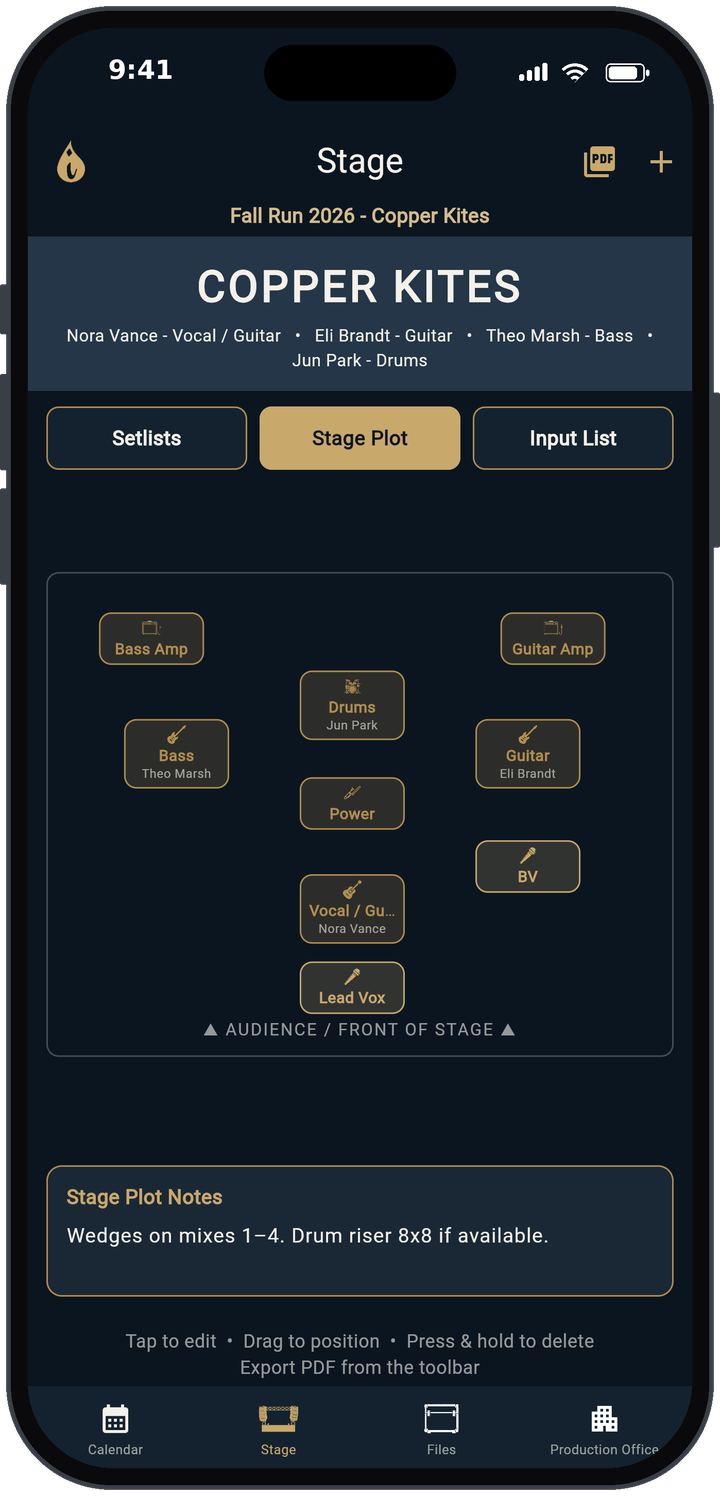
Build the plot
The Stage Plot lives on the Stage tab (second bottom tab), between Setlists and Input List. The plot is top-down, with ▲ AUDIENCE / FRONT OF STAGE ▲ along the bottom edge.
- Tap + (Add To Stage Plot) and choose Musician / Instrument, Mic, Monitor or Riser.
- Drag any item into place.
- Tap an item to edit its Label, Musician and Icons.
- Press and hold an item to delete it.
Risers
A riser is a wide, one-line bar that reads like "8 x 8 Riser" (width x depth in feet), or just "Riser" if you leave the sizes empty. Drag it like any other item and tap it to change the size.
Notes and PDF
Stage Plot Notes hold anything FOH, monitors or the venue should know, and they print on the PDF. Export PDF saves the plot to Files › Stage Plots. Two Preferences control the PDF: Musician Names On Stage Plot and Include Band Logo On PDFs.
Pair it with the input list
The Input List sits one tab over, so the plot and the channel list are always updated together. Want to sketch a plot without an account? Try the free stage plot builder.
Learn more
- Every button and setting: user guide
- How to make a stage plot
- How to write an input list
- How to write a tech rider
- Free stage plot builder
Free templates
Open TRMNGR Quick start